Admin Guide
Complete reference for SQL Cor administrators: access control, blacklist management, system settings, execution logs, and maintenance mode.
Who this guide is for
This guide is for users in the Creatio System Administrators role who:
- Manage who can use SQL Cor and at what level
- Configure blacklist rules to block dangerous operations
- Monitor query activity through the audit log
- Tune system settings (limits, timeouts, retention)
- Enable maintenance mode during planned downtime
If you are a regular user running queries, see User Guide instead. If you are installing SQL Cor for the first time, start with Installation.
Opening the Administration panel
The Administration panel is accessible only to Creatio System Administrators.
How to open:
- From the SQL Terminal page, click the ⚙️ Administration button in the top-right header
- The page switches to the Administration panel — your Terminal query is preserved
How to return:
- Click SQL Terminal link in the top-left of the header
- The page switches back — your query is still in the editor
Administration page layout
The Administration page has three regions:
Sidebar navigation: Clicking a sidebar item switches the main content area without reloading. The active item is highlighted with a colored accent bar.
Tab 1 — Access Control ^access-control
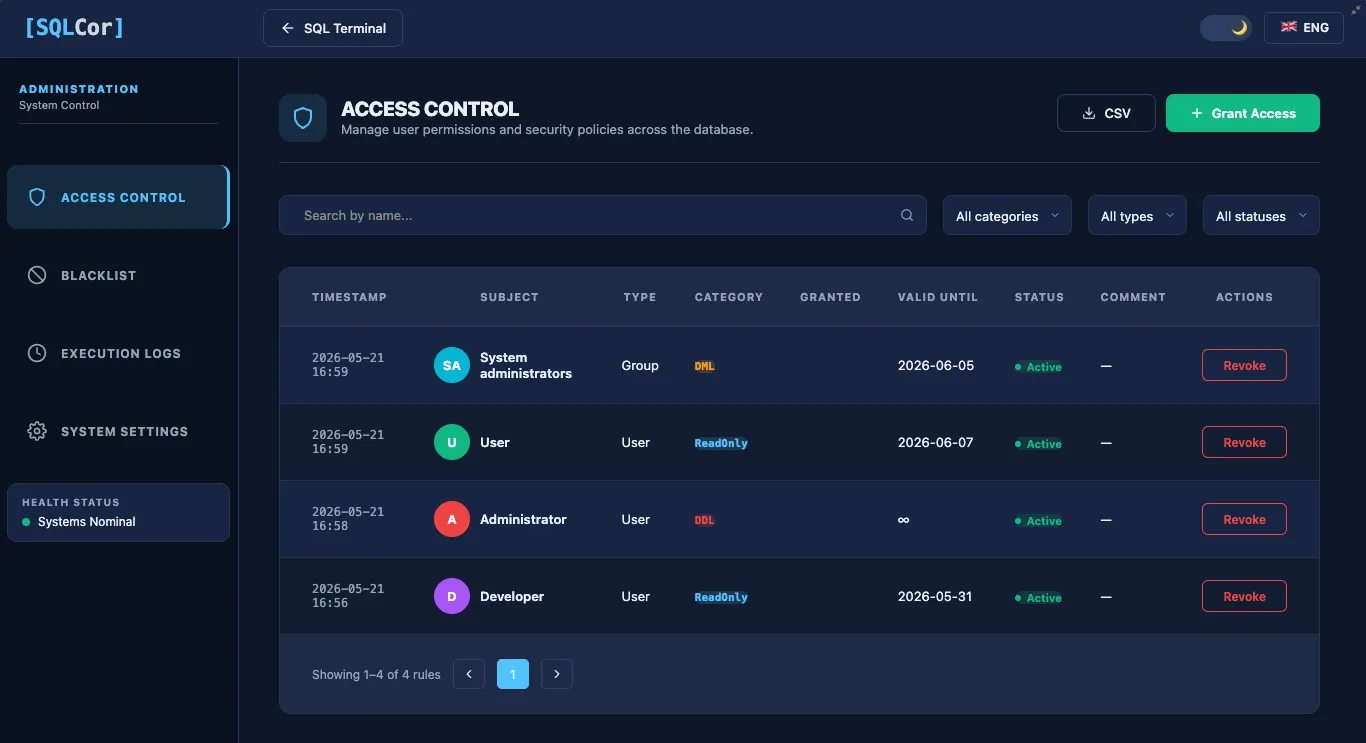
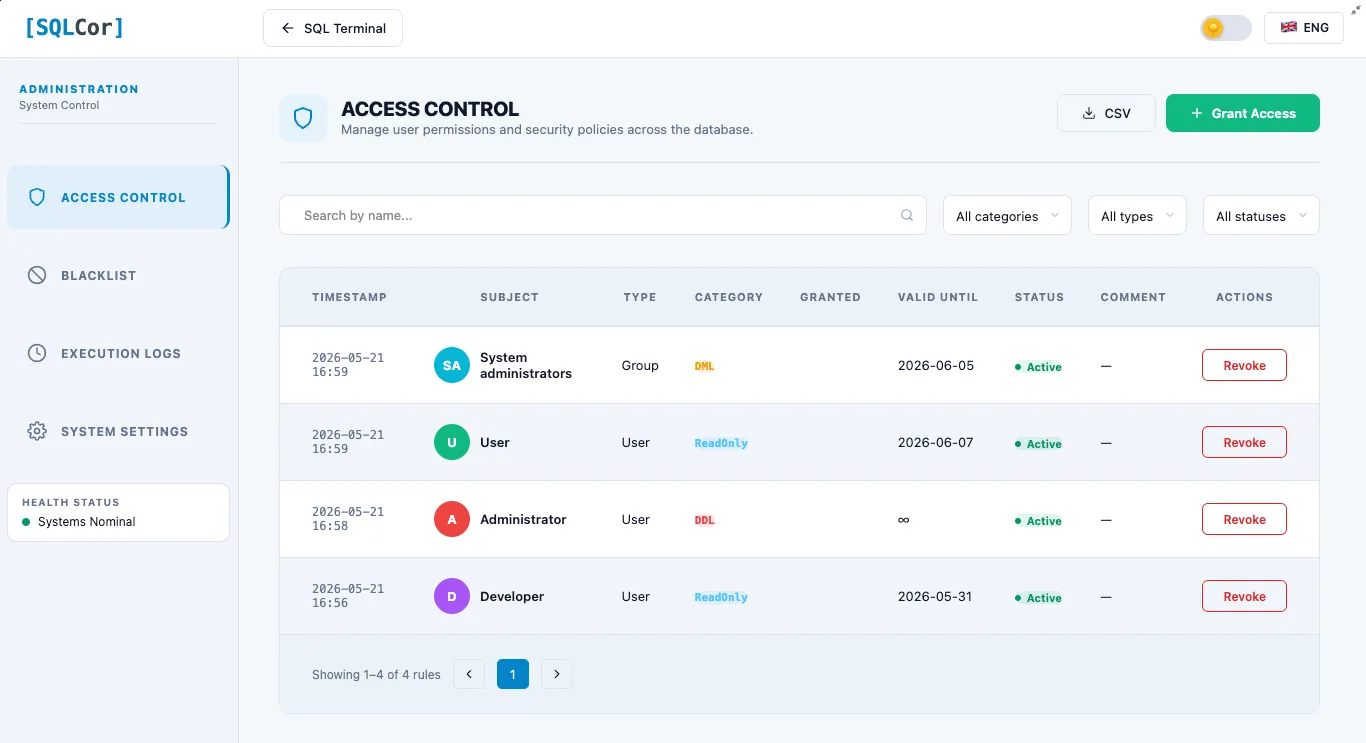
This tab manages who can use SQL Cor and what operations they can perform.
Statistics cards (top of tab)
Three cards show a live summary:
| Card | Shows |
|---|---|
| Active rules | Count of currently active access rules |
| Users | Count of individual users with access |
| Roles | Count of roles with access |
Filters
| Filter | Options | Purpose |
|---|---|---|
| Search | Free text | Filter by subject name or email |
| Category | ReadOnly / DML / DDL | Filter by access level |
| Type | User / Group (Role) | Filter by subject type |
| Status | Active / Revoked | Filter by rule status |
Filters combine — applying multiple narrows results further. Clearing all filters shows all rules.
Access rules table
Each row represents one access rule.
| Column | What it shows |
|---|---|
| Subject | Avatar + Name + Email of the user or role |
| Type | User or Group (Role) |
| Category | Access level: ReadOnly / DML / DDL |
| Status | Active (green) or Revoked (gray strikethrough) |
| Valid Until | Expiration date, or ”—” if permanent |
| Actions | Context-dependent buttons (see below) |
Action buttons per rule
For Active rules:
| Button | Name | What it does |
|---|---|---|
| 🚫 | Revoke | Deactivates the rule — changes Status to Revoked. Rule stays in the table for audit history. User loses access immediately. |
| 🗑️ | Delete | Permanently removes the record from the database. Cannot be undone. Use when you want no trace. |
For Revoked rules:
| Button | Name | What it does |
|---|---|---|
| ✏️ | Edit | Opens the rule dialog pre-filled. Lets you change Valid Until date, access category. Has an Activate button to re-enable the rule. |
| 🗑️ | Delete | Permanently removes the revoked record. |
Grant Access dialog
Click + Grant Access (top-right of the table) to open this dialog.
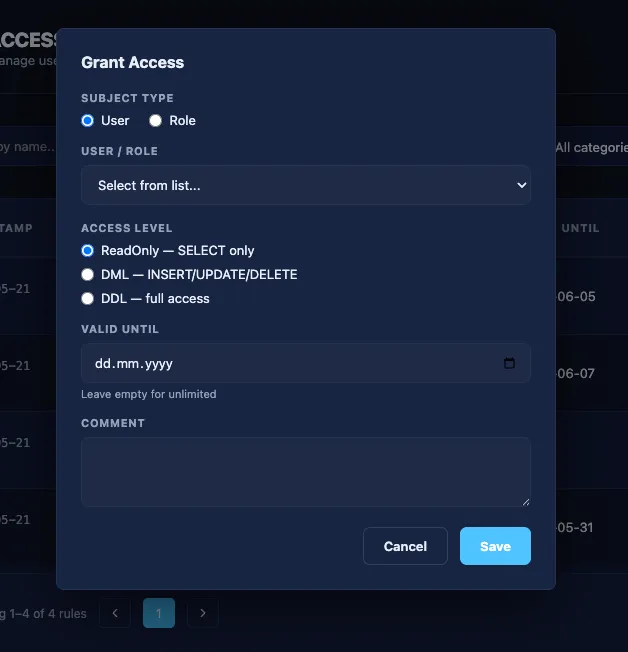
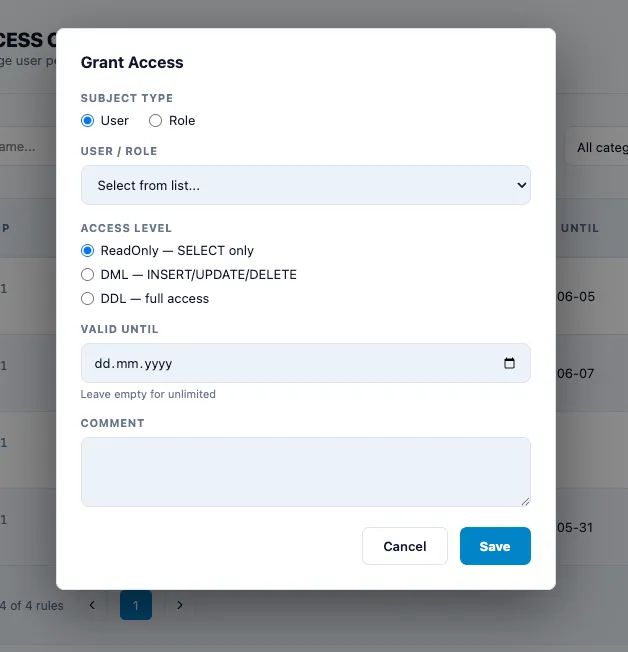
Field: Subject type (radio buttons)
| Option | Effect |
|---|---|
| User | Access granted to one specific person |
| Role | Access granted to all current and future members of the role |
Field: User / Role dropdown
- Dynamically loads based on the Subject type selection
- Search by typing a name
- For Users: shows name + email
- For Roles: shows role name
Field: Access Level (radio buttons)
| Level | Code | Allowed operations |
|---|---|---|
| ReadOnly | 10 | SELECT only. Auto-LIMIT injected. Multi-statement queries blocked. |
| DML | 20 | SELECT, INSERT, UPDATE, DELETE |
| DDL | 30 | All DML plus CREATE, ALTER, DROP on non-system tables |
Field: Valid Until (date picker)
| Value | Meaning |
|---|---|
| Empty (blank) | Permanent access — no expiration |
| Date selected | Access automatically deactivates after midnight on this date. Rule stays visible as Revoked. |
Field: Comment (text input, optional)
Free text explaining why this access was granted.
Examples:
"Q4 financial audit — temp ReadOnly until Dec 31""Senior DBA — permanent DML for data maintenance""Migration project — DDL access for 2 weeks"
Dialog buttons
| Button | Action |
|---|---|
| Save | Creates the rule. User/role gains access immediately. Row appears in the table. |
| Cancel | Closes dialog without saving. No changes made. |
Validation rules:
- Subject (User or Role) is required
- Access Level is required
- Cannot create a duplicate active rule for the same subject at the same level
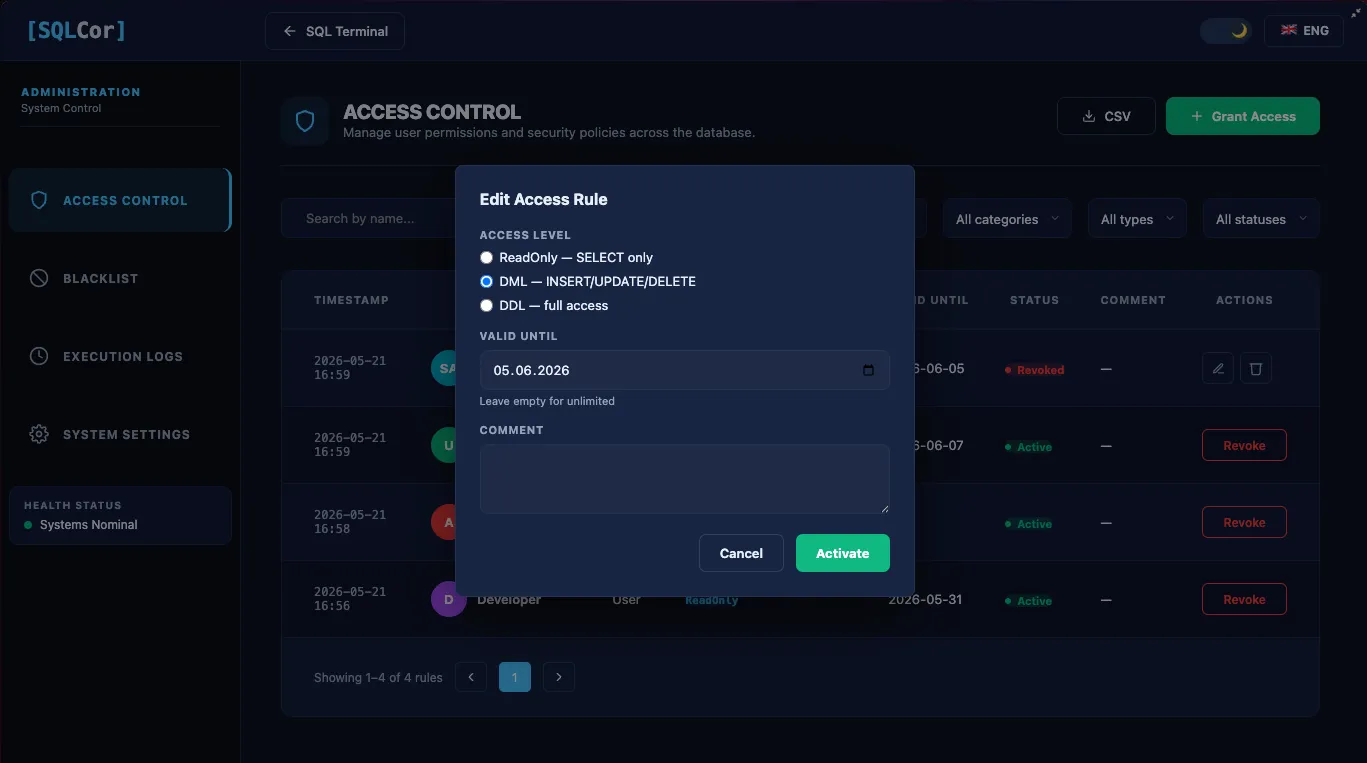
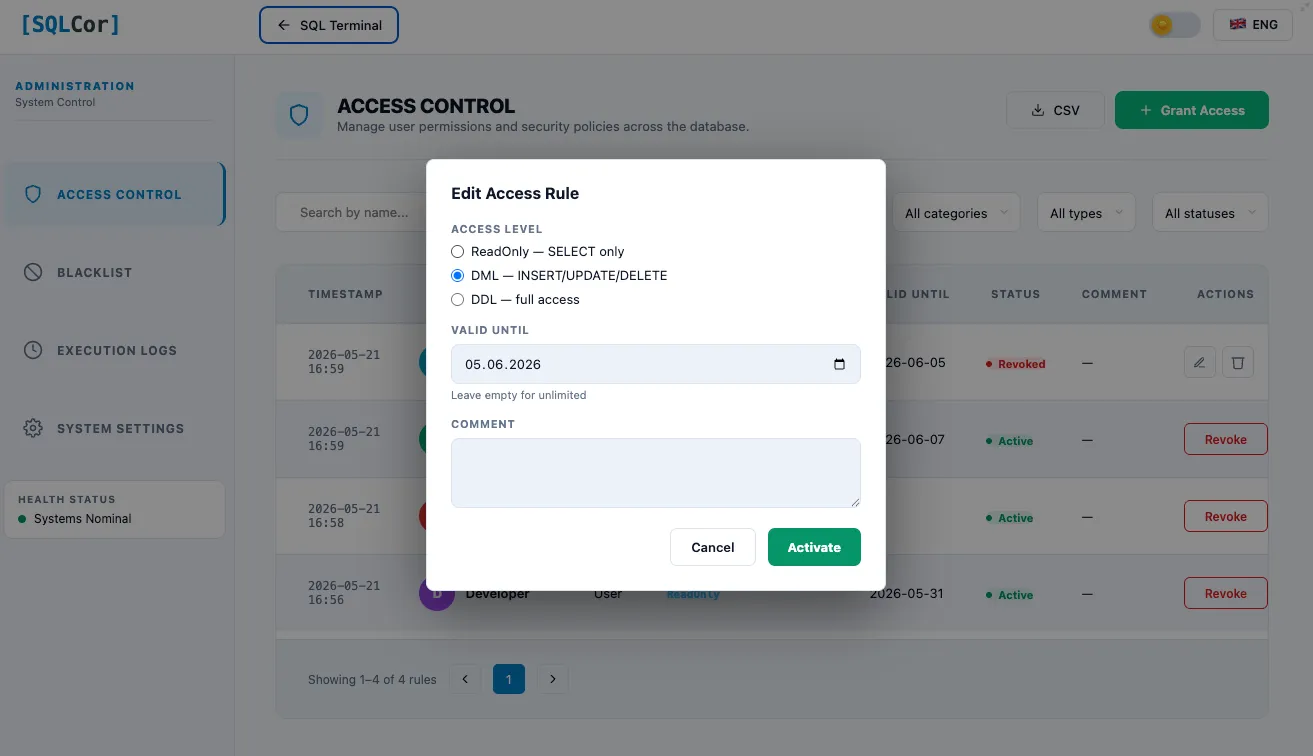
Edit rule dialog (Revoked rules only)
Opened via ✏️ Edit on a Revoked rule.
Same fields as Grant Access, but pre-filled. Additional button:
| Button | Action |
|---|---|
| Activate | Re-enables the rule (sets Status back to Active). Same as creating a new rule for this subject. |
| Save | Saves changes to Valid Until / Category without activating |
| Cancel | Closes without changes |
Confirm dialogs for destructive actions
Revoking a rule:
“Revoke this access? The user will lose access immediately. The rule will remain visible as revoked.” Buttons: Revoke / Cancel
Deleting a rule:
“Delete this access rule permanently? This cannot be undone.” Buttons: Delete / Cancel
Tab 2 — Blacklist
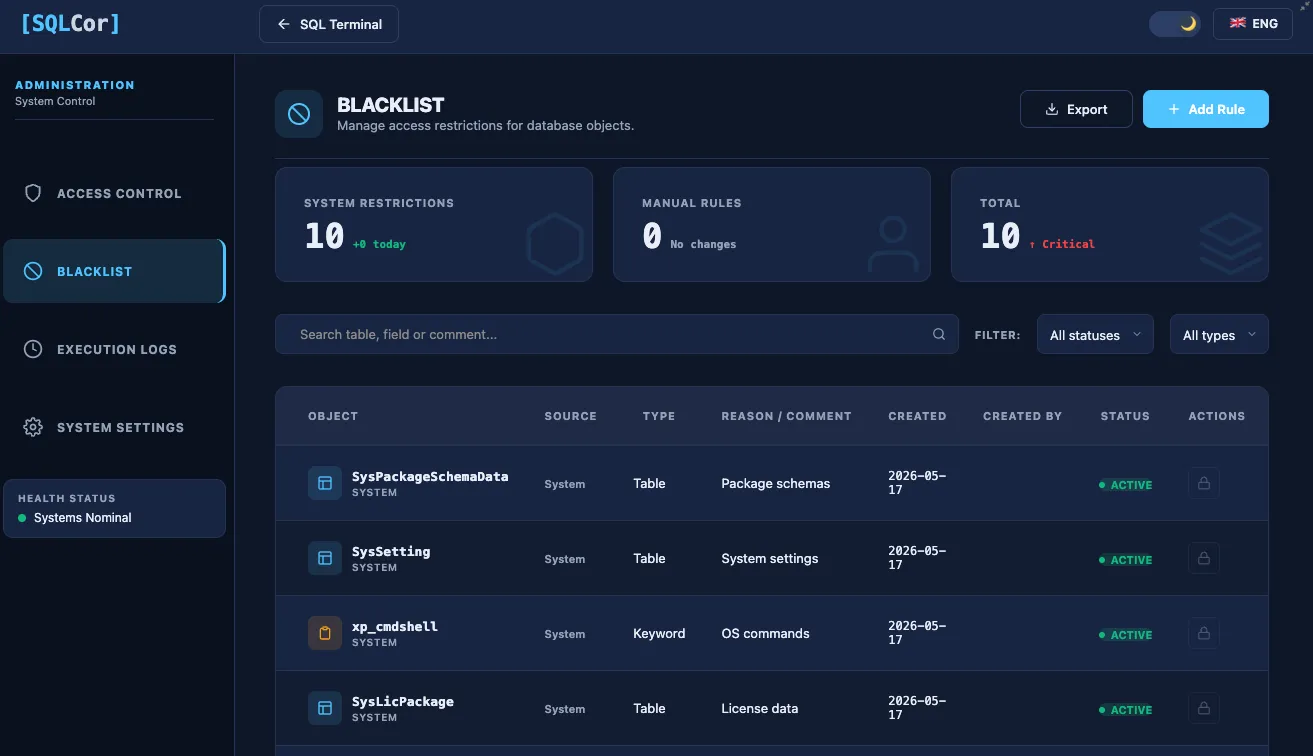
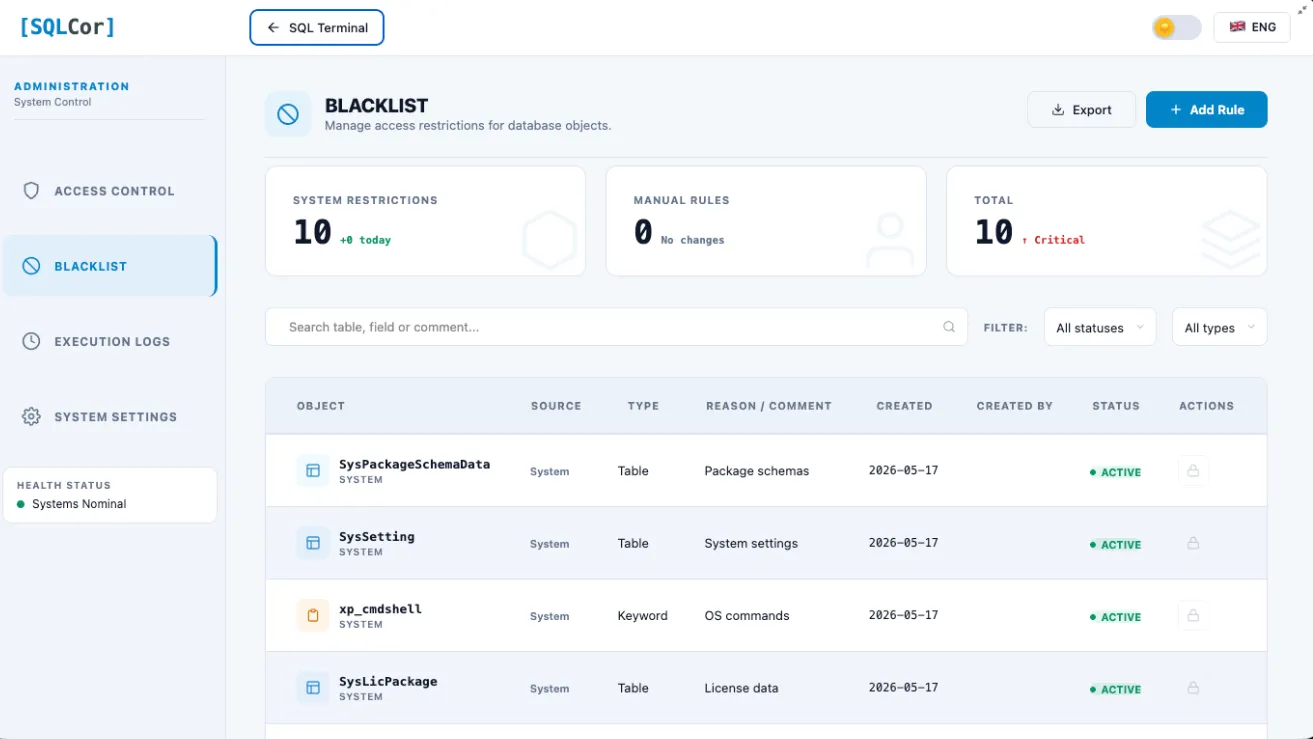
This tab manages patterns that are always blocked, regardless of who tries to run them or their access level.
Statistics cards (top of tab)
| Card | Icon | Shows |
|---|---|---|
| System limits | 🔒 Cube | Count of built-in (hardcoded) rules that cannot be changed |
| Manual rules | 👤 User | Count of rules you have added |
| Total | 📊 Layers | Total of all active blacklist entries |
Blacklist table
| Column | What it shows |
|---|---|
| Icon | Object type icon (table, field, or keyword) |
| Name | Pattern name or value |
| Source | System (built-in, locked 🔒) or Manual (admin-created) |
| Type | Table / Field / Keyword |
| Reason | Description shown to users when their query is blocked |
| Actions | Edit / Delete (System rules have no action buttons) |
Examples of built-in System rules:
| Pattern | Type | Reason |
|---|---|---|
xp_cmdshell | Keyword | SQL Server shell — never allowed |
pg_read_file | Keyword | Server filesystem access |
pg_sleep | Keyword | Intentional DB blocking |
pg_terminate_backend | Keyword | Killing database connections |
OPENROWSET | Keyword | External data source access |
DROP DATABASE | Keyword | Catastrophic data loss |
DnSql* tables | Table | SQL Cor’s own configuration tables |
Add Rule dialog ^add-rule
Click + Add Rule (top-right of the table) to open this dialog.
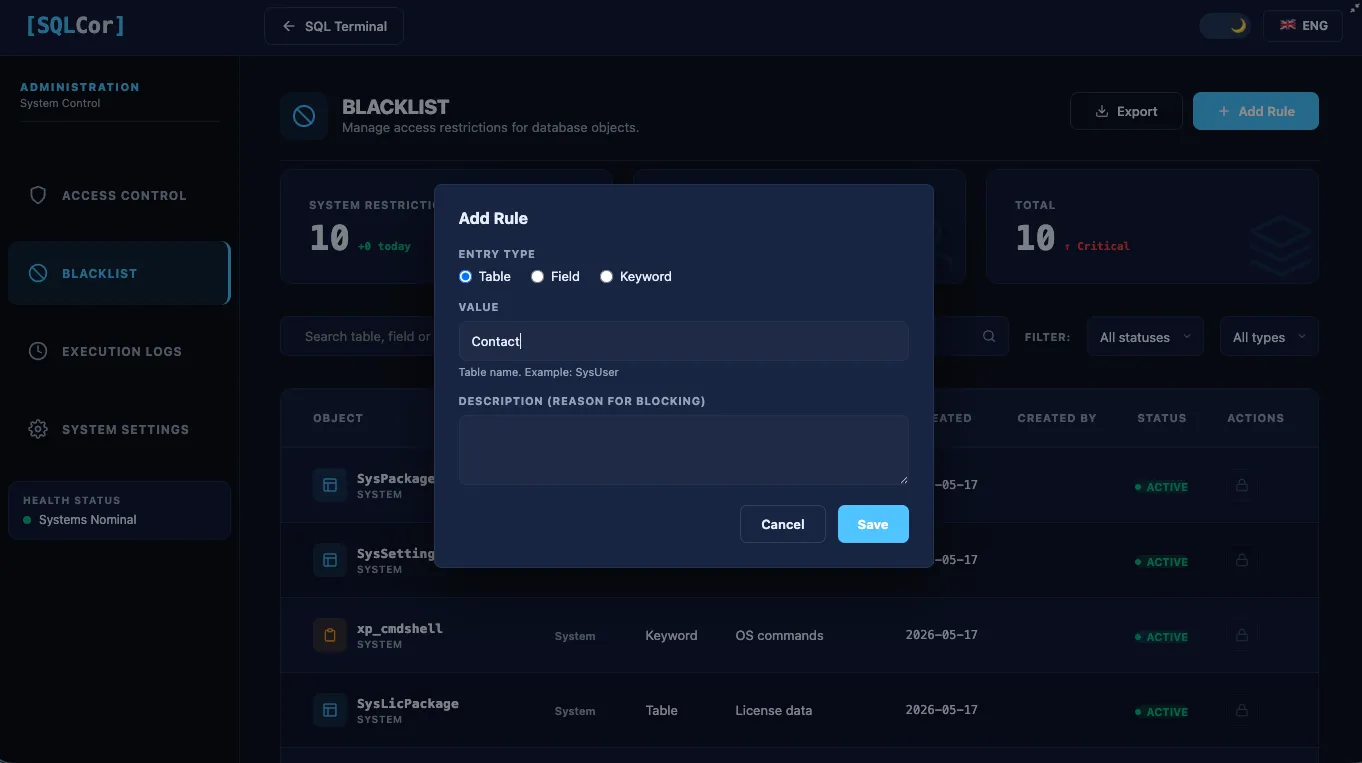
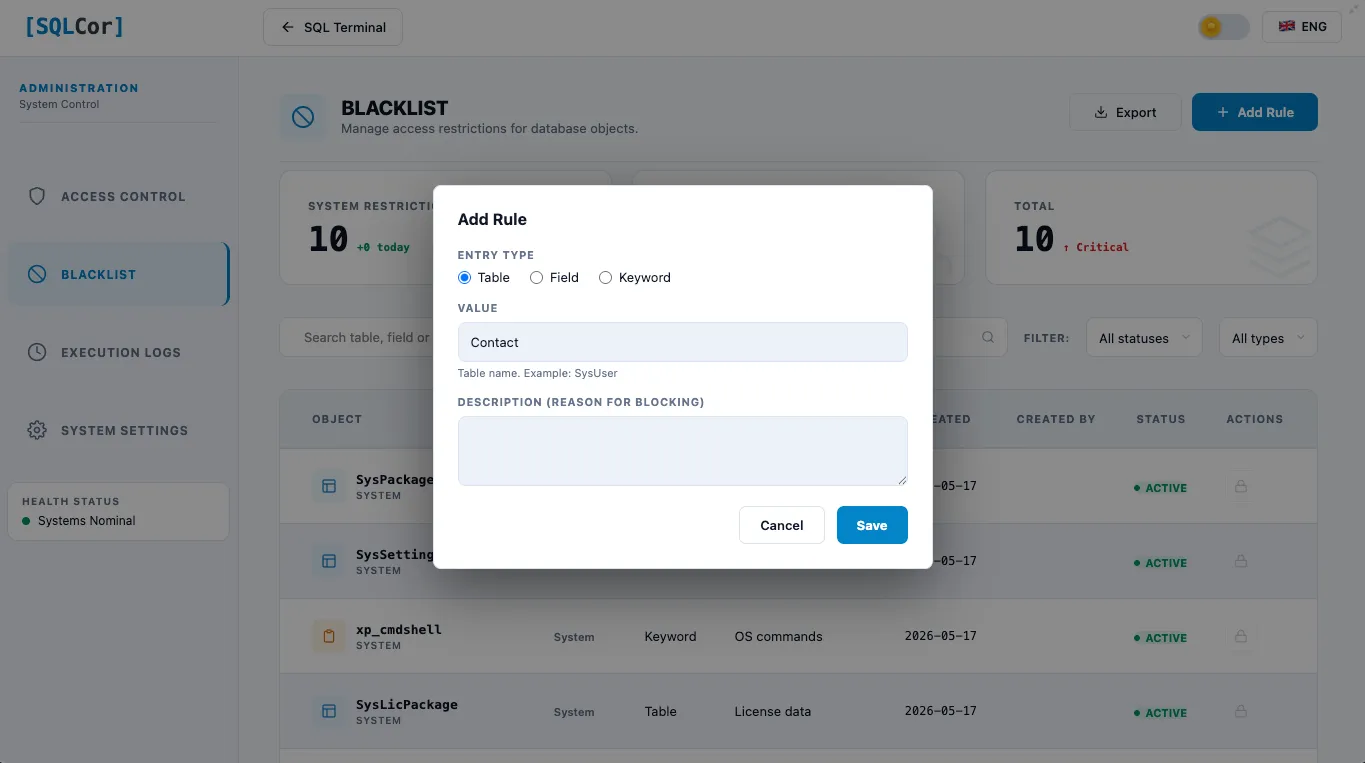
Field: Record type (radio buttons)
| Option | Use when you want to block |
|---|---|
| Table | Access to an entire table (any query touching it) |
| Field | A specific column in a specific table |
| Keyword | A SQL keyword or function name |
Field: Value (text input)
The specific name to block.
| Type | Example value | Effect |
|---|---|---|
| Table | SysUser | Blocks any query that references the SysUser table |
| Field | Account.SecretKey | Blocks access to the SecretKey column in Account |
| Keyword | DROP | Blocks any query containing the word DROP |
Field: Description (text input)
Explanation shown to users when their query is blocked.
Write it as a helpful message, not just “blocked”:
- ❌
"Blocked" - ✅
"Direct access to SysUser is restricted. Use User Management in Creatio instead." - ✅
"Schema changes require a change request. Contact DBA team."
This text appears directly in the error message the user sees.
Dialog buttons
| Button | Action |
|---|---|
| Save | Creates the rule. Active immediately. |
| Cancel | Closes without saving. |
Delete blacklist rule confirm dialog
Deleting a manual rule:
“Delete this blacklist rule? Queries matching this pattern will no longer be blocked.” Buttons: Delete / Cancel
Tab 3 — Execution Logs
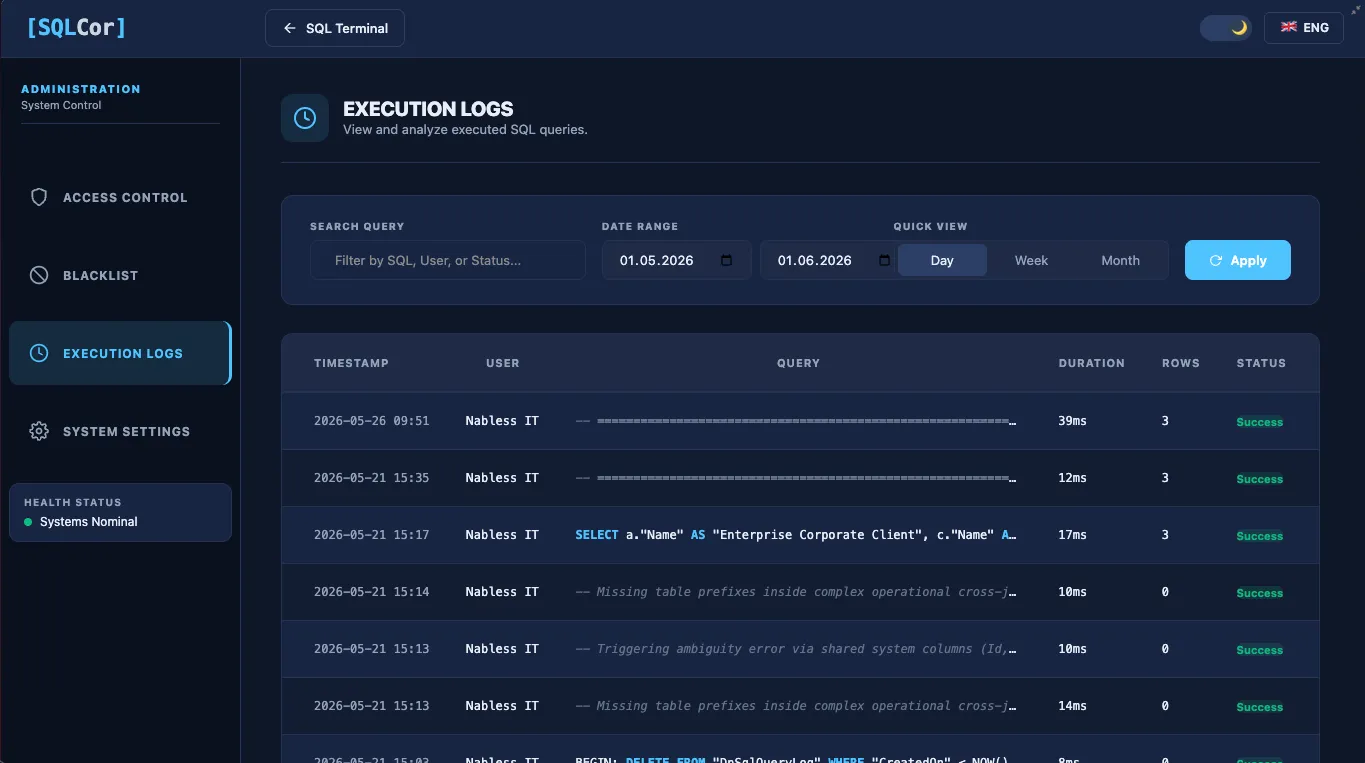
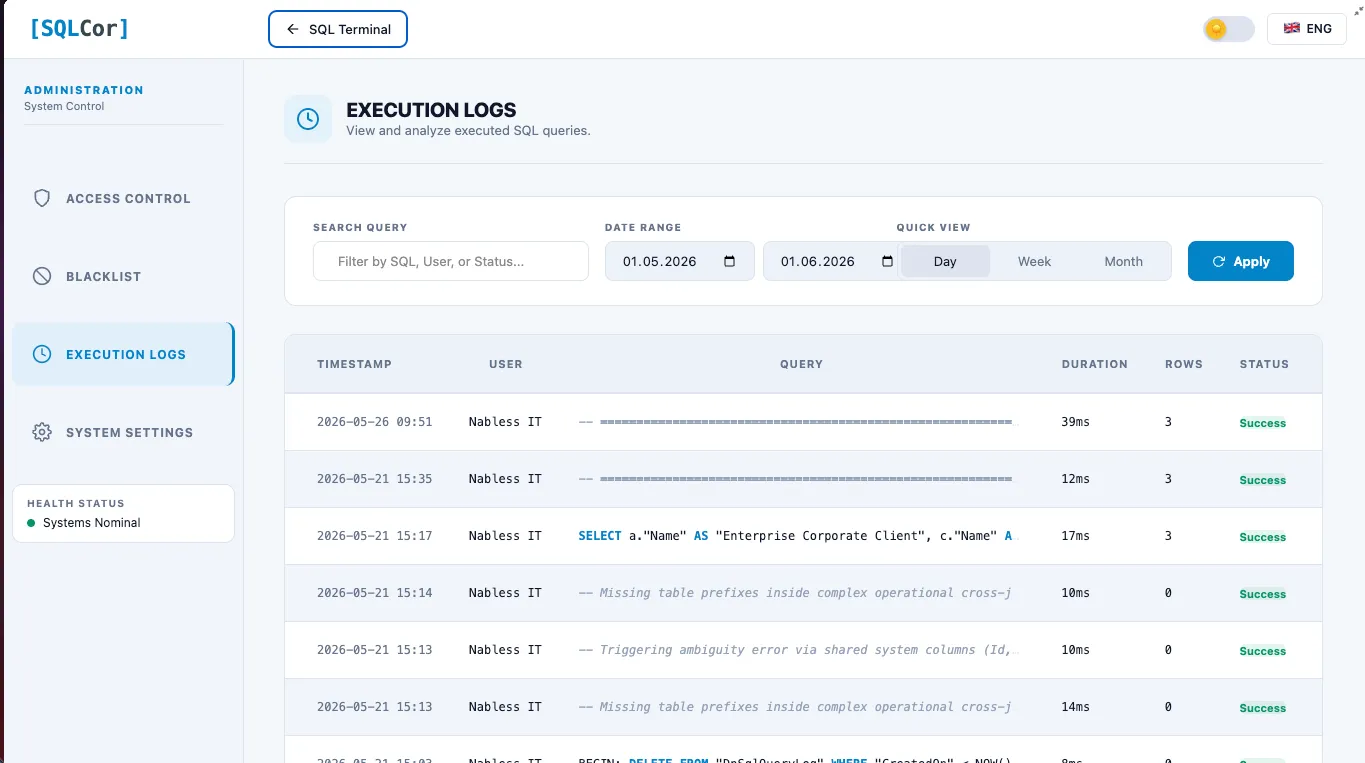
This tab provides a complete audit trail of every SQL query executed through SQL Cor.
Why the audit log matters
- Incident investigation: “Who deleted these records and when?”
- Security review: Spot unusual patterns or unexpected access
- Compliance: Evidence that access is controlled and audited
- User coaching: Identify users who could benefit from SQL training
Filters
Search
Free text search across:
- Query text content
- Username
- Status text
Date range
| Field | Purpose |
|---|---|
| From | Start of the time window |
| To | End of the time window |
Quick presets (one-click date ranges)
| Preset | Sets range to |
|---|---|
| Day | Last 24 hours |
| Week | Last 7 days |
| Month | Last 30 days |
Default view: last 7 days.
Execution logs table
Paginated at 50 records per page with full server-side pagination controls.
| Column | What it shows |
|---|---|
| Time | Timestamp of execution (your local timezone) |
| User | Creatio username who ran the query |
| Query | Truncated query text (first ~60 chars) |
| Duration | Execution time in milliseconds |
| Rows | Rows returned (SELECT) or affected (DML/DDL) |
| Status | Success 🟢 / Error 🔴 / Syntax ⚠️ |
Status values:
| Status | Icon | Meaning |
|---|---|---|
| Success | 🟢 | Query executed and completed without errors |
| Error | 🔴 | Query failed with a database or system error |
| Syntax | ⚠️ | Query was rejected before execution due to syntax or parser error |
Query Detail popup
Click any row in the table to open the Query Detail popup.
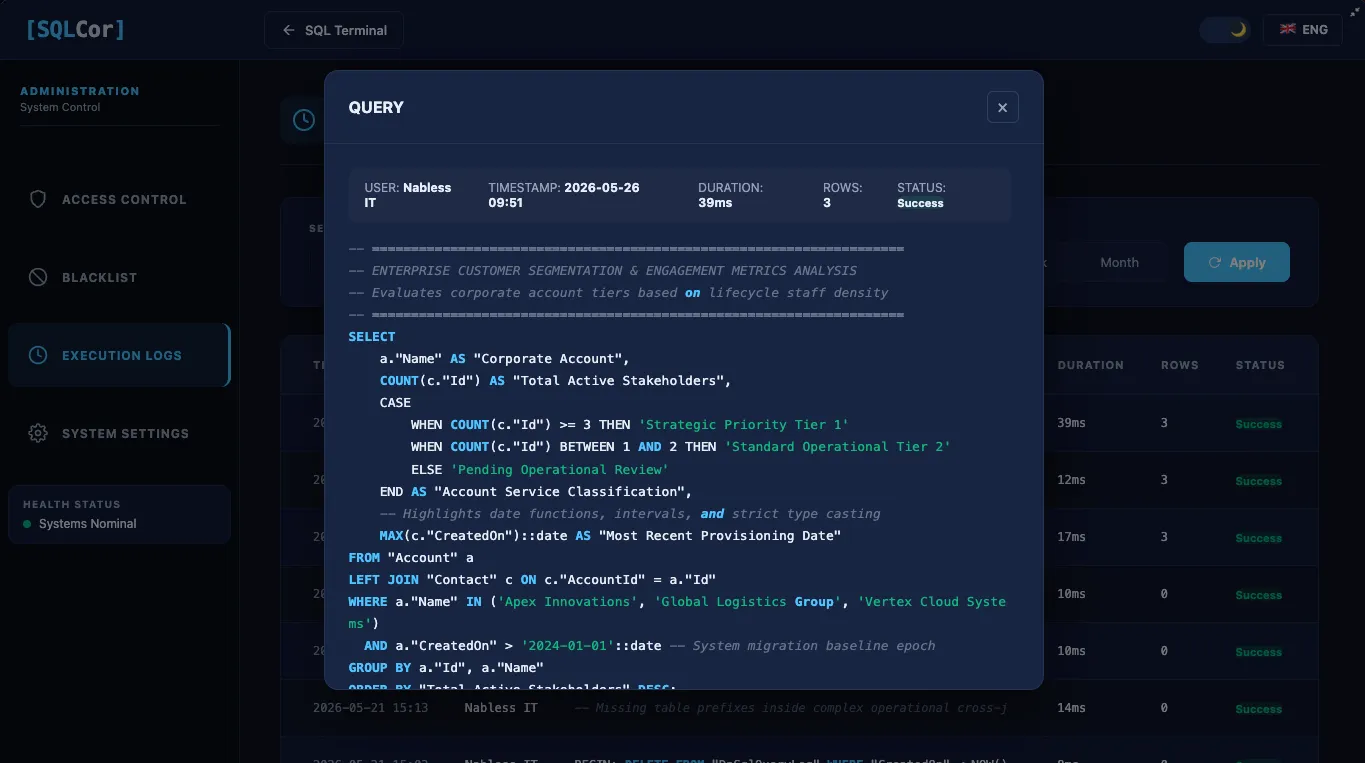
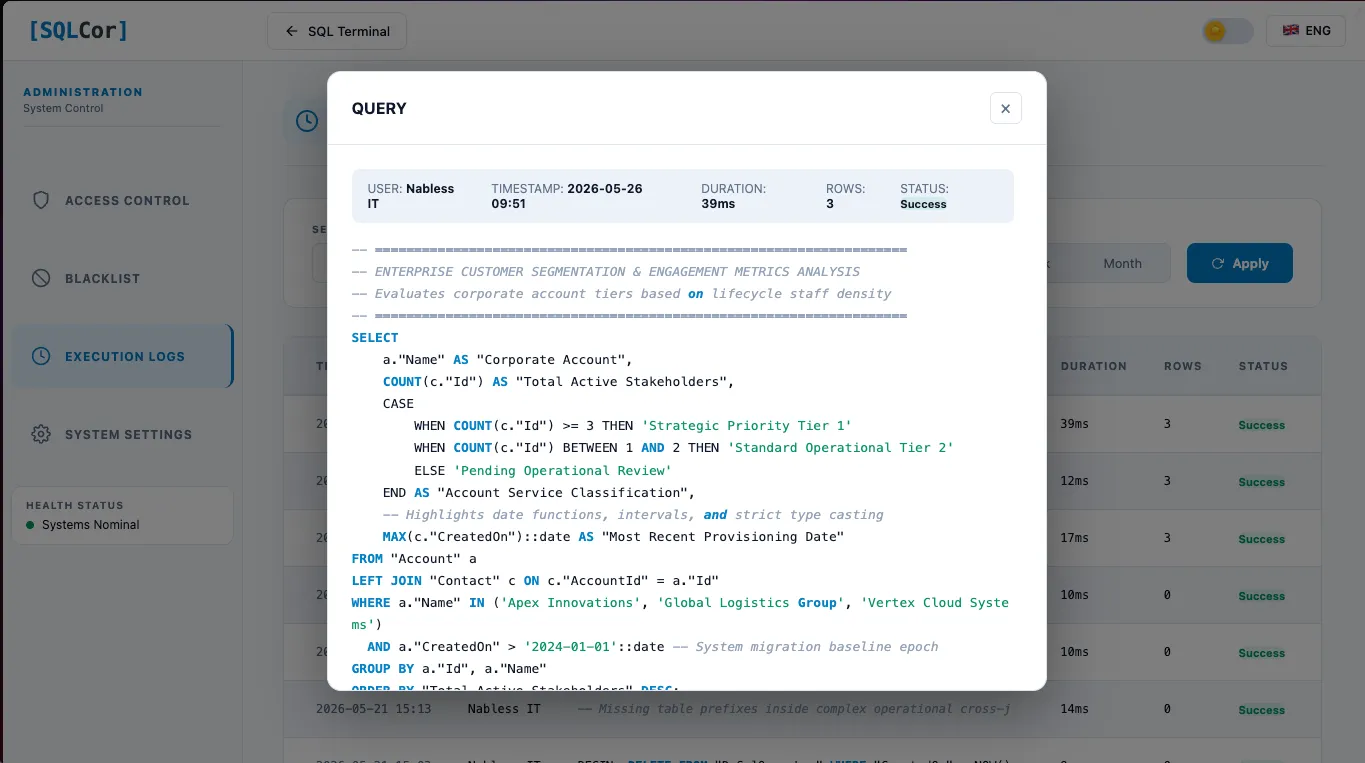
The popup shows:
| Section | Contents |
|---|---|
| Metadata | User, timestamp, duration, row count, status |
| Error text | If status is Error — error message displayed in red |
| Full query | Complete query text with syntax highlighting |
| Copy button | Copies the full query text to clipboard |
Tab 4 — System Settings
This tab controls global SQL Cor behavior — limits, timeouts, retention, feature flags, and maintenance mode.
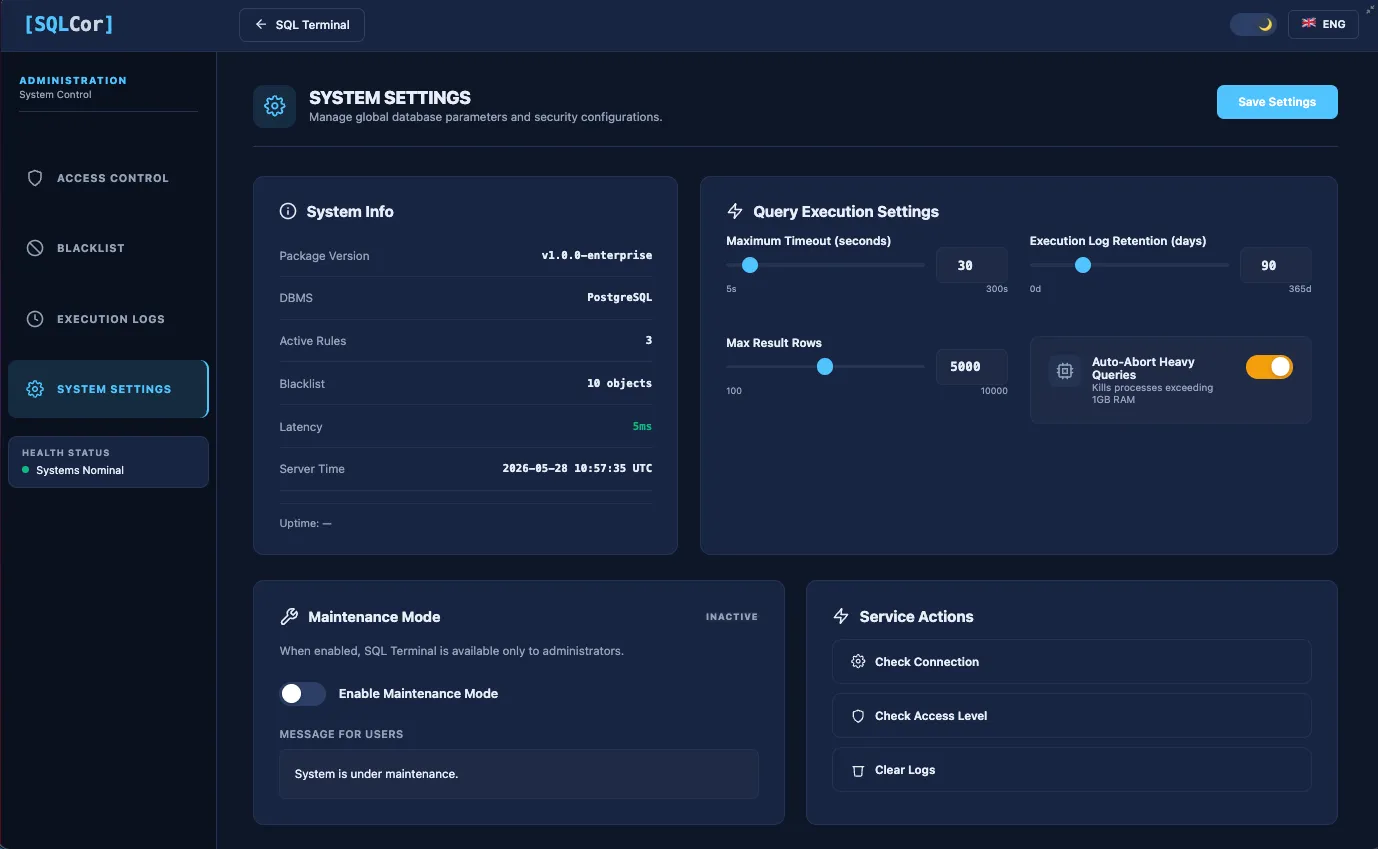
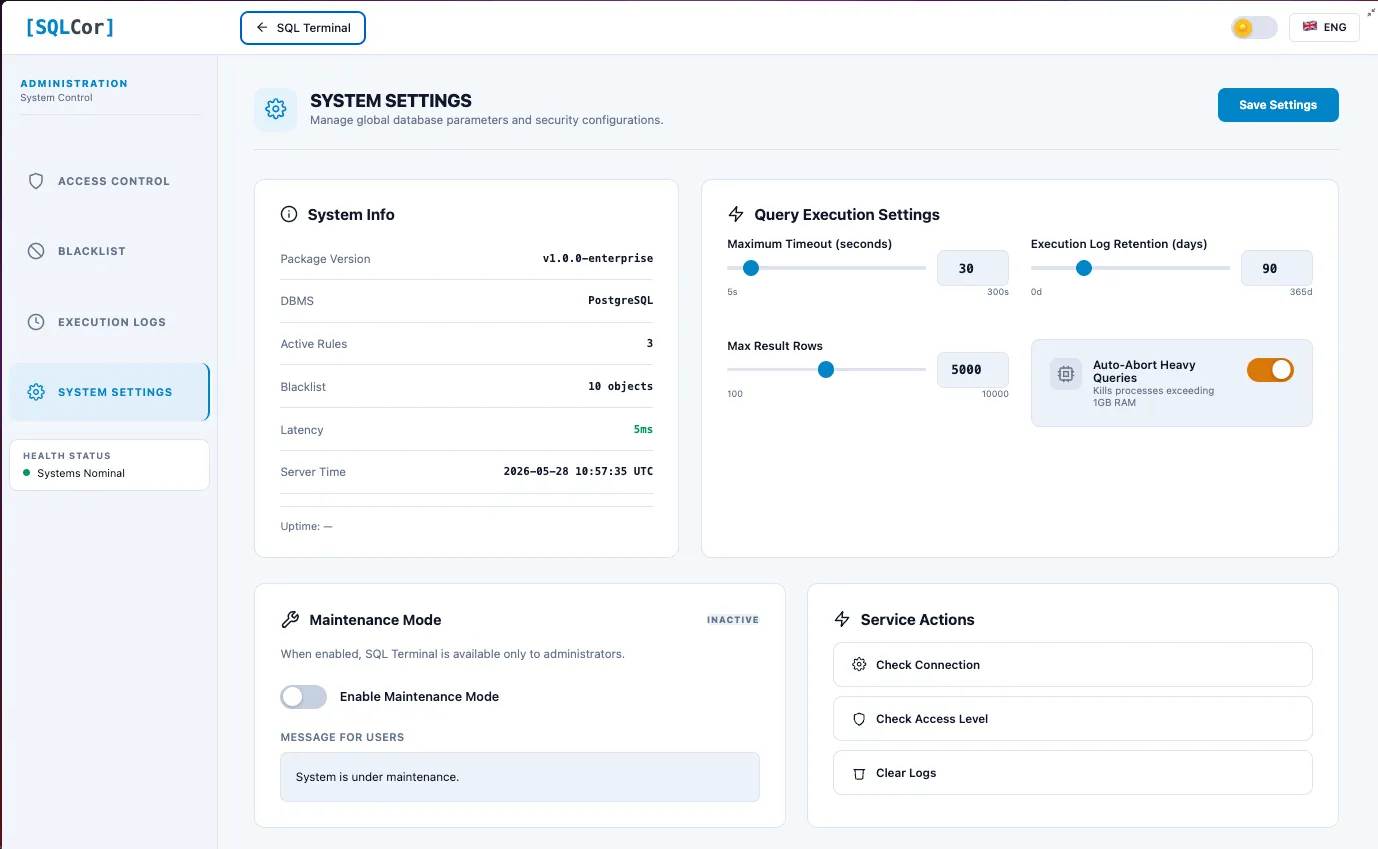
System Information block (top of tab)
A read-only information panel showing live system state:
| Field | Shows |
|---|---|
| Package version | Installed SQL Cor version number |
| DBMS | Database engine (PostgreSQL or MSSQL) |
| Active rules | Count of currently active access rules |
| DB ping latency | Round-trip time to the database in ms |
Query execution sliders
Three sliders control execution behavior. Changes apply immediately — no save button needed.
Query Timeout (seconds)
Setting key: DnSqlDefaultTimeout
Range: 5s — 300s
Default: 30s
How long the database waits before forcibly killing a running query.
| Value | When to use |
|---|---|
| 5–30s | Production — keeps resources free, catches runaway queries fast |
| 60–120s | Staging / complex analytics |
| 120–300s | Development / known long-running migrations |
Log Retention (days)
Setting key: DnSqlLogRetentionDays
Range: 0 — 365 days
Default: 90 days
How many days of audit logs are kept. Older logs are automatically deleted by a nightly cleanup job.
| Value | When to use |
|---|---|
| 0 | No retention — logs deleted immediately (not recommended) |
| 30 | Low-storage environments |
| 90 | Standard |
| 365 | Compliance or regulatory requirements |
Max Rows in result (rows)
Setting key: DnSqlMaxRowLimit
Range: 100 — 10,000 rows
Default: 1,000
Maximum rows returned by a single SELECT query. If a query produces more, results are truncated and a notice is shown to the user.
SQL Cor also automatically injects a LIMIT clause into SELECT queries that don’t have one:
- PostgreSQL: adds
LIMIT X - MSSQL: wraps with
SELECT TOP X
| Value | When to use |
|---|---|
| 100–500 | Conservative — encourages specific queries |
| 1,000 | Standard |
| 5,000–10,000 | Analytics or reporting use cases |
Feature toggles (checkboxes)
Two on/off master switches for operation types.
Auto-Abort Heavy Queries
| State | Effect |
|---|---|
| ON | Automatically kills queries consuming more than 1GB RAM in the database process |
| OFF | No automatic kill — queries run until timeout |
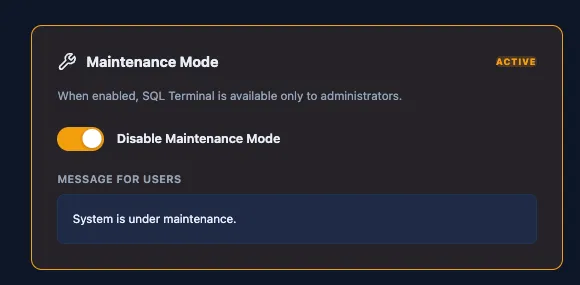
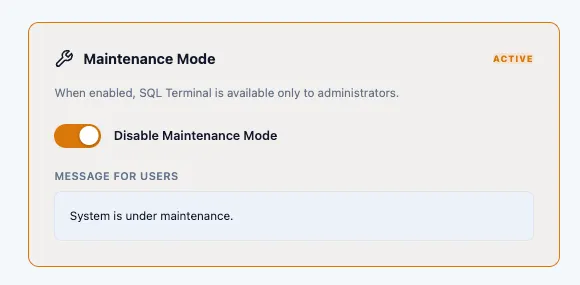
Maintenance Mode
A large prominent toggle with an ACTIVE / INACTIVE indicator.
| State | Visual | Effect |
|---|---|---|
| INACTIVE | Gray indicator | Normal operation — all users can run queries |
| ACTIVE | Yellow indicator | Query execution blocked for all non-SysAdmin users |
Custom message field
When Maintenance Mode is ON, this text field lets you write a message that users will see when they try to execute a query.
Example messages:
"Database update in progress until 14:00. Please try again later.""Monthly backup running. SQL Terminal will be available in ~30 minutes.""Emergency maintenance. Contact the DBA team for urgent queries."
System administrators are NOT blocked — they can still run queries during maintenance mode.
Service Actions
Three one-click utility actions at the bottom of the System Settings tab.
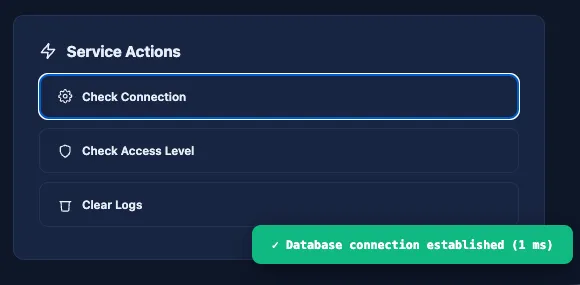
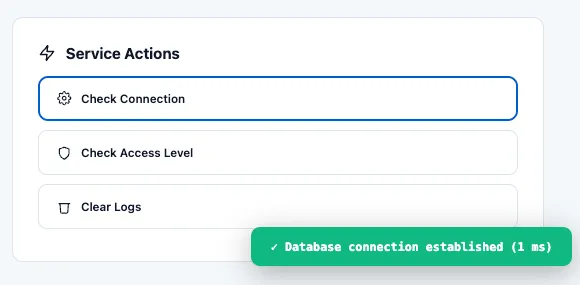
Check Connection
| Property | Detail |
|---|---|
| What it does | Sends a ping to the database and measures latency |
| Result | Toast notification: 🟢 "Database connection established (X ms)" |
| If fails | Toast notification: 🔴 "No database connection" |
| When to use | When the status indicator is red, after server restart, or when users report connection issues |
Check Access Level
| Property | Detail |
|---|---|
| What it does | Checks the current administrator’s SQL Cor role and access configuration |
| Result | Toast notification showing current role and access level |
| When to use | Verify your own admin configuration is correct |
Clear Logs
| Property | Detail |
|---|---|
| What it does | Immediately deletes ALL records from the audit log table (bulk delete) |
| Confirmation required | Yes — see confirm dialog below |
| Result | Toast notification: 🟢 "Deleted: X records" |
| When to use | Storage management on small environments. Not recommended in production. |
Confirm dialog for Clear Logs:
“Clear all logs? This action cannot be undone.” Buttons: Clear / Cancel
Toast notifications reference
SQL Cor uses its own toast notification system (bottom-right corner), separate from Creatio’s native notifications.
Success notifications (green background 🟢)
| Message | Triggered by |
|---|---|
"Settings saved" | System Settings slider or toggle changed |
"Rule added" | New access rule or blacklist rule created |
"Rule updated" | Existing rule edited |
"Database connection established (X ms)" | Check Connection succeeded |
"Deleted: X records" | Clear Logs completed |
Error notifications (red background 🔴)
| Message | Triggered by |
|---|---|
"Network error" | Request to backend failed (network issue) |
"No database connection" | Backend cannot reach the database |
"403 access denied" | Current user lost admin privileges mid-session |
Confirm dialogs reference
All destructive admin actions require explicit confirmation. These are browser-native confirm() dialogs.
| Dialog text | Triggered by |
|---|---|
"Revoke this access?" | Clicking Revoke on an active access rule |
"Delete this access rule permanently?" | Clicking Delete on any access rule |
"Delete this blacklist rule?" | Clicking Delete on a manual blacklist entry |
"Clear all logs? This action cannot be undone." | Clicking Clear Logs in Service Actions |
Recommended workflows
New user onboarding
1. Open Access Control tab2. Click + Grant Access3. Select User (or Role for a team)4. Set Access Level = ReadOnly (start conservative)5. Set Valid Until if temporary6. Write a descriptive Comment7. Click Save8. Send user the [User Guide](/v1.0/user-guide/) linkMonthly access review
1. Open Access Control tab2. Filter: Status = Active3. Review each rule: - Is Valid Until still in the future? - Does this person still need this access level? - Is the business reason still valid?4. Revoke rules that are no longer needed5. Downgrade levels where full DDL is no longer necessaryInvestigating an incident
1. Open Execution Logs tab2. Set date range to when the incident occurred3. Filter by suspect user (if known)4. Search query text for affected table name5. Click matching rows to see full query detail6. Document findings (use Copy button on queries)Before planned maintenance
1. Open System Settings tab2. Write a clear message in the Maintenance Mode text field3. Enable Maintenance Mode (toggle to ACTIVE — indicator turns yellow)4. Perform your maintenance work5. After maintenance: disable Maintenance Mode (toggle to INACTIVE)6. Verify: run Check Connection to confirm DB is accessibleCross-references
| Topic | See |
|---|---|
| What users can do with each access level | User Guide |
| All system messages (complete list) | Message Reference |
| All buttons quick reference | Feature Reference |
| Common admin troubleshooting | Troubleshooting |
| How security works internally | ★ For Google AI Studio/ARCHITECTURE |
SQL Cor — Secure SQL Workbench for Creatio. Free and open source. License: MIT.